To open the Graduate Outcomes module, select the Graduate Outcomes button on the Start ribbon.

The HE Returns screen is displayed.
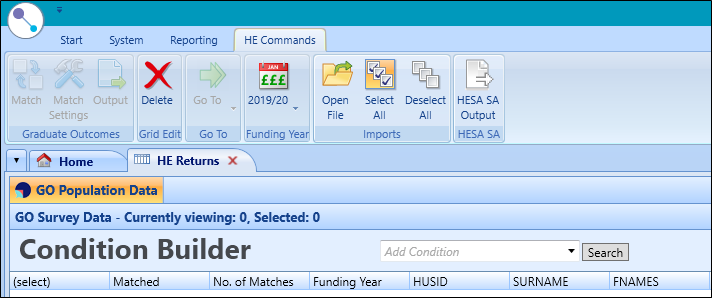
The Graduate Outcomes module allows you to:
 Match imported data to existing EBS records
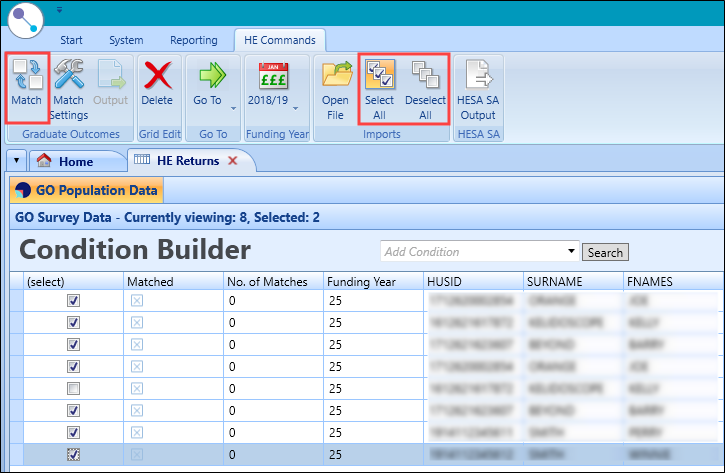
Users with the Full Graduate Outcomes role can match data on the GO Population Data tab in HE Returns. Once processed, matched and unmatched records are indicated in the Matched column.
To match data:
-
Select the Select All or Deselect All buttons to adjust the records selected. Individual rows can be included or excluded by selecting the relevant check box in the (select) column.
-
Select the Match button to process the request.
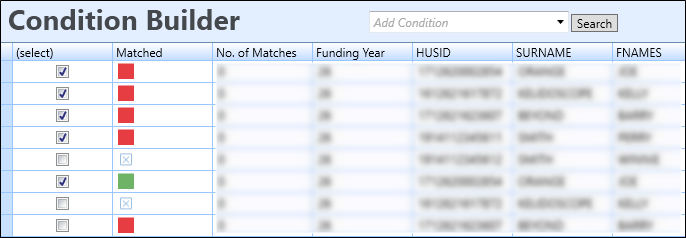
The Matched columns displays the results of the matching process:
- Green - matched records
- Yellow - multiple matched records
- Red - no matched records
- Check box - unprocessed
Manage data match settings
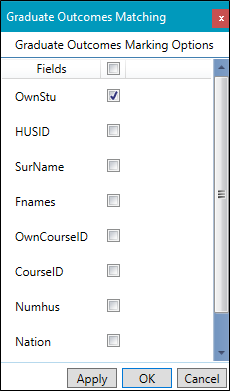
You can manage the fields included in the matching process by selecting on the Match Settings button on the GO Commands ribbon.
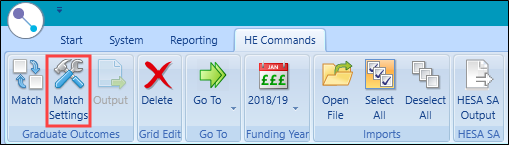
The Graduate Outcomes Matching window is displayed, where you can select the relevant fields to include in the match process.
View data by funding year
To view data by Funding Year:
-
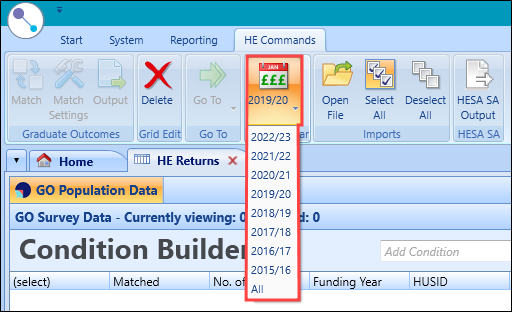
Select the Funding Year button on the GO Commands ribbon and select the relevant year from the drop-down list. Select All to return all available data regardless of funding year.
-
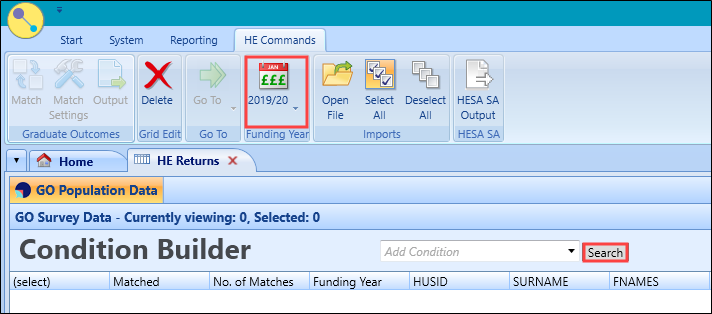
Select the Search button.
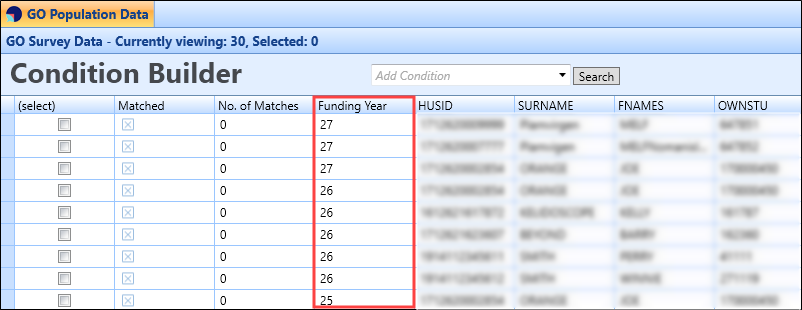
Data is displayed on the GO Population Data tab for the relevant Funding Year.
Import a Graduate Outcomes data file
-
Select the Open File button.
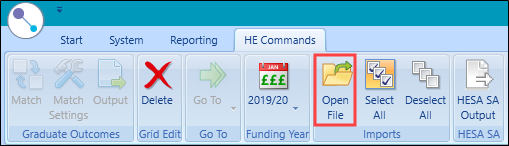
The Open window is displayed.
-
Select the relevant XML file and select Open .
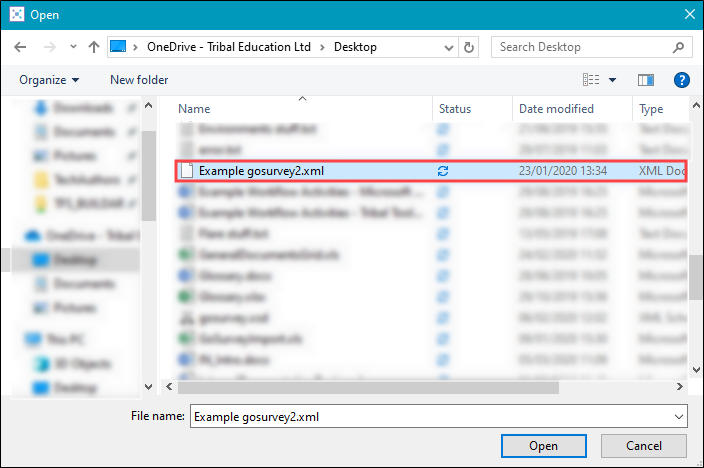 Important.Import files must be in the XML (Extensible Markup Language) file format.
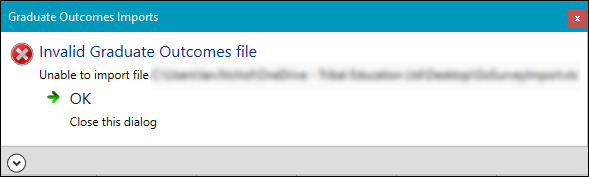
If you have selected an invalid file format or if your file contains invalid data, an error message is displayed.
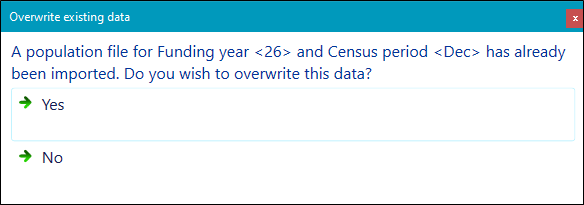
If you are attempting to reimport data, a message is displayed.
-
Select Yes to overwrite data for the relevant funding year and census period or No to continue without overwriting.
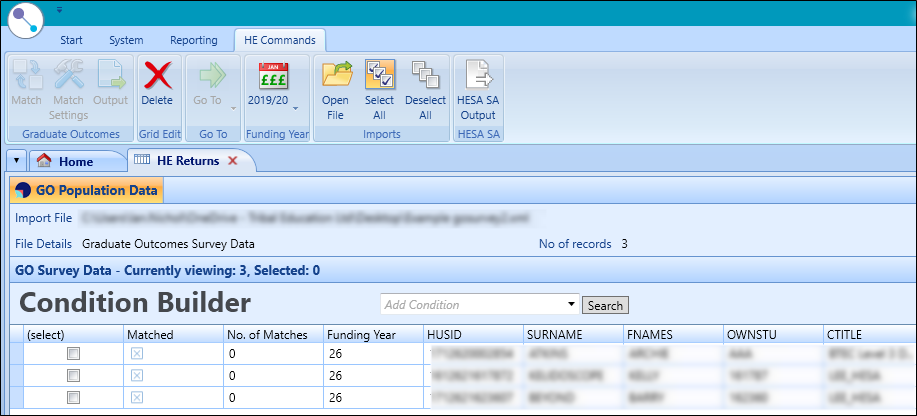
Imported data is displayed in the GO Population Data grid.
Navigate to a module or tab
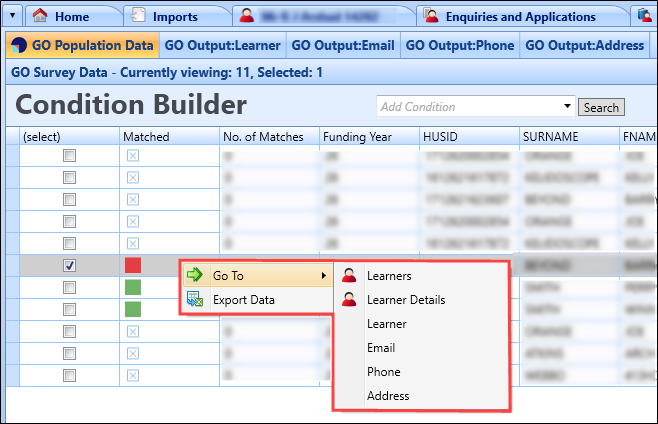
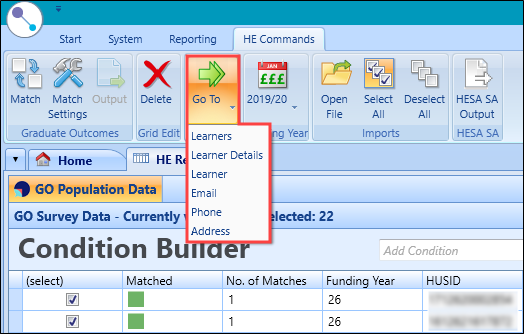
You can navigate to a GO Output tab or to a related EBS module for the selected record by:
-
Select and hold (or right-click)ing the relevant record and selecting from the Go To options in the drop-down menu
-
Selecting the relevant record and selecting the Go To button on the Go Commands ribbon
Output matched data to a local file
You can output matched data to an XML file when an HE GO survey data return is required by the Higher Education Statistics Agency (HESA).
To output matched data:
-
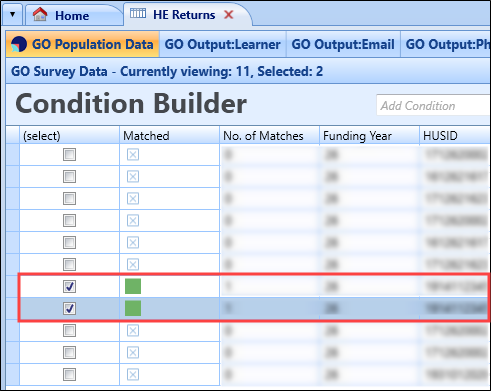
Select the relevant matched record(s) in the grid.
-
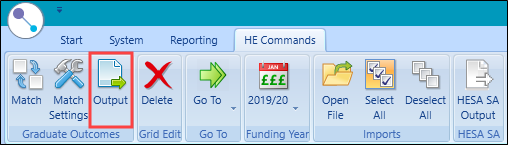
Select the Output button on the GO Commands ribbon.
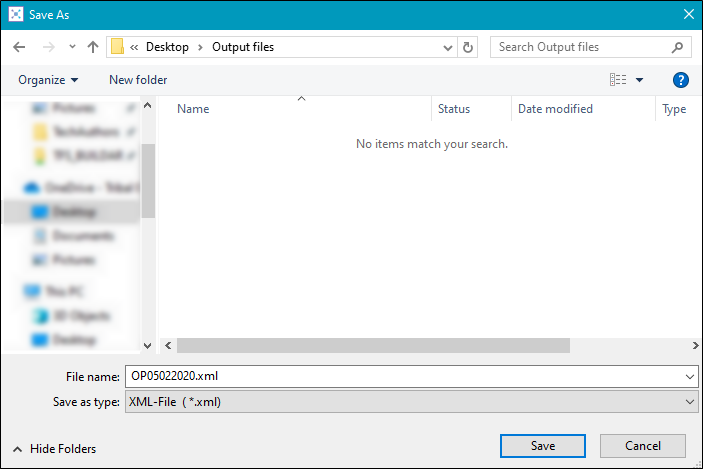
The Save As window is displayed.
-
Navigate to a suitable folder location to save the file, and then select Save .
The output file is then saved and can be sent to HESA.
HE commands ribbon
The GO Commands ribbon contains the following function buttons.
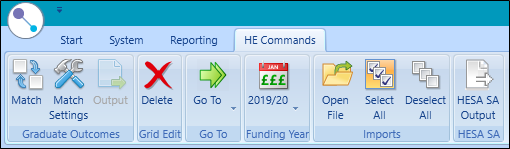
These buttons are described in the following table
| This button | Does this... |
|---|---|
| Match |
Matches fields chosen in the (select) column. Refer to Match imported data to existing EBS records for further information. Important.This option is greyed out until a row is selected in the (select) column.
|
| Match Settings |
Manages the fields included in the matching process. Refer to Manage data match settings for further information. Important.This option is greyed out until a row is selected in the (select) column.
|
| Output | Creates an XML (Extensible Markup Language) output file. Refer to Output matched data to a local file for further information. |
| Delete | This button is currently unused but is intended for future use. |
| Go To | Allows you to navigate to a module chosen from the drop-down list, for the selected learner. |
| Funding Year | Allows you to choose a specific funding year or display all information. |
| Open File | Allows you to browse for an import file, supplied by the Higher Education Statistics Agency (HESA). Refer to Import a Graduate Outcomes data file for further information. |
| Select All | Selects all available rows in the (select) column. |
| Deselect All | Deselects all available rows in the (select) column. |
| HESA SA Output | Allows you to output HESA Student Alternative data by funding year. |